How Often Should You Update WordPress? (it's important)
How often should you update WordPress? Core, plugins, and themes each have different timelines. Here's the exact schedule:
Not all WordPress updates follow the same timeline. Here is the exact update schedule used on real client sites, broken down by type so you know what to automate, what to review, and what never to skip.
By Sheikh Hassaan — Website developer for service businesses
Quick Answer
WordPress core minor versions and security-flagged plugin patches should be applied within 48 hours of release, ideally via auto-update. Major core and plugin updates should be reviewed and applied within one week, with staging environment testing for complex sites. Theme updates should be checked monthly and applied manually. PHP version should be reviewed annually. A properly maintained WordPress site requires one 15-minute session per week.
Why Update Frequency Matters More Than Most Business Owners Realize
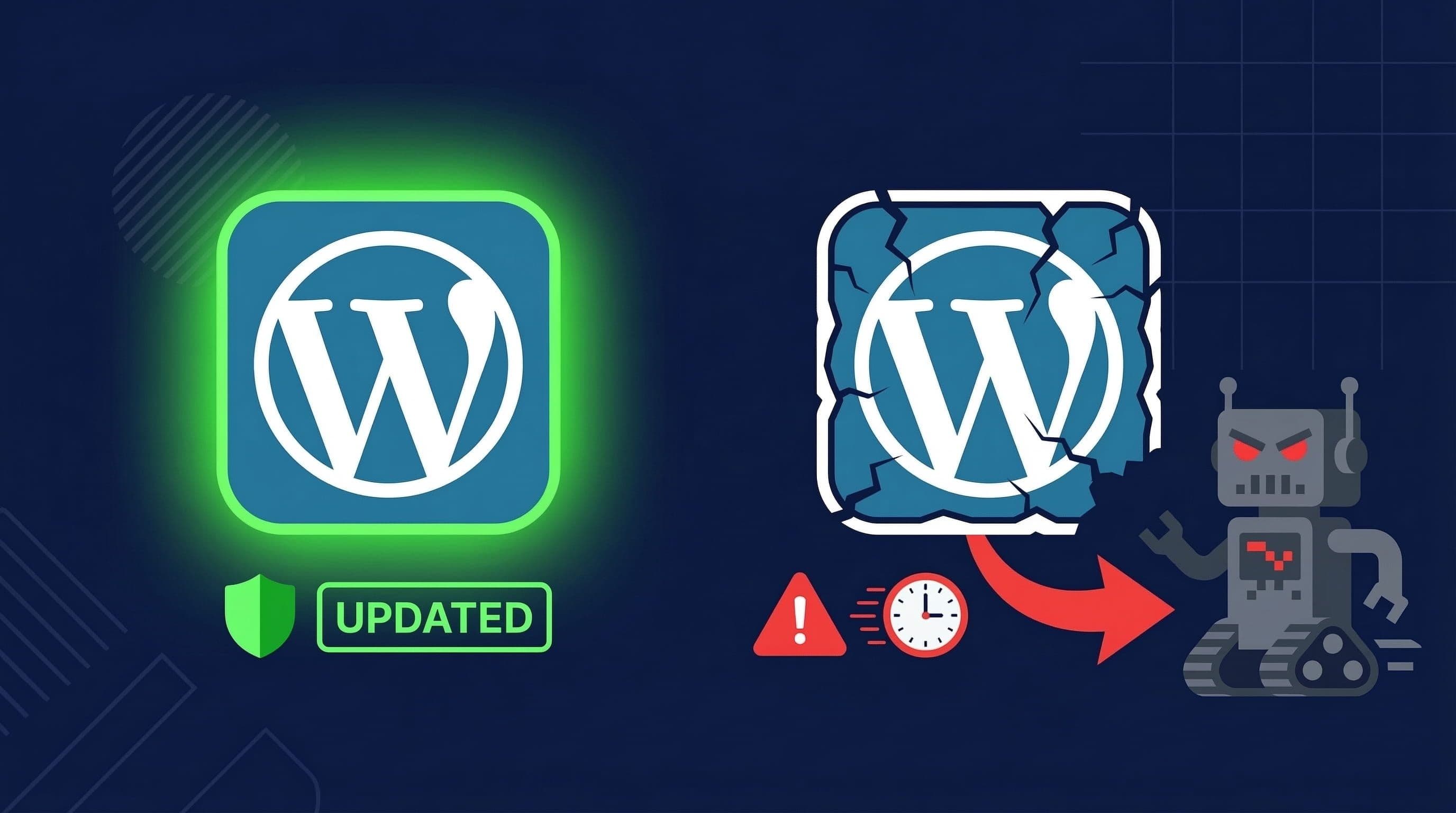
Outdated WordPress site vs updated site
Most small business owners treat WordPress updates as a housekeeping task. Something to do when there is time. Something that can wait until next month. That framing is what creates the vulnerability window that attackers rely on.
WordPress powers over 40 percent of the internet. That scale makes it the most targeted web platform by a significant margin. Security researchers and attackers both monitor the same plugin vulnerability databases. When a vulnerability is disclosed publicly, a patch is released the same day or within hours. Sites running the unpatched version become active targets within 24 to 48 hours of that disclosure.
A business owner who updates monthly has an average 15-day exposure window on every security vulnerability that drops. That is not a hypothetical risk. The WordPress ecosystem logs thousands of plugin vulnerabilities per year. The ones that get exploited at scale are almost always the ones where site owners delayed applying the available patch.
Beyond security, outdated WordPress installations affect site performance, compatibility with modern PHP versions, and the ability to use current features in plugins and page builders. A site that has not been updated in six months is not just less secure. It is slower, more likely to develop functionality errors, and harder to maintain when something eventually does break.
WordPress Updates Are Not All the Same
Understanding what each type of update does is what allows you to set the right schedule rather than treating everything as equally urgent or equally deferrable.
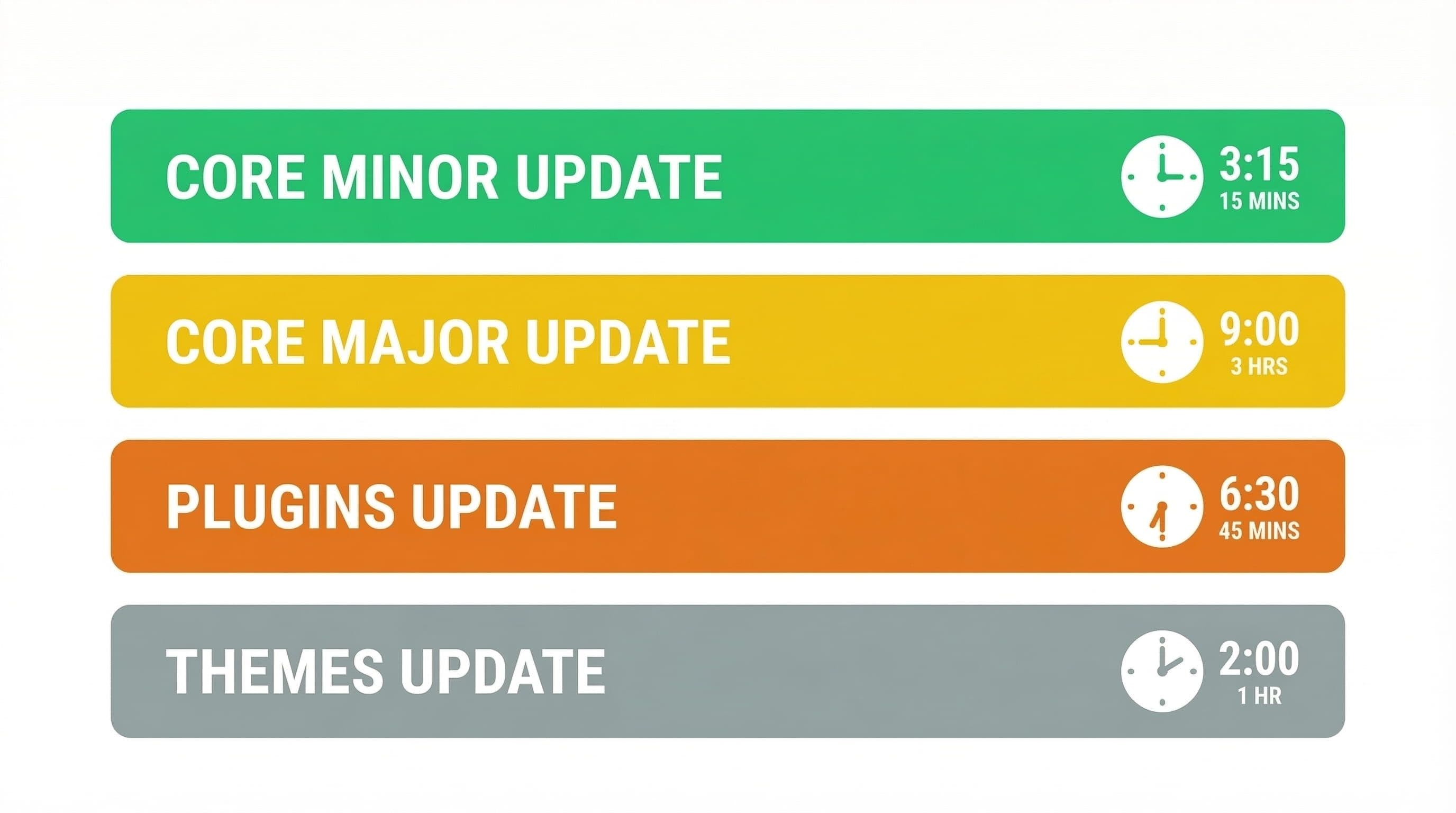
WordPress update types and frequency guide, core minor, core major, plugin, and theme update timelines
WordPress Core Updates
Minor core updates follow the numbering pattern x.x.1, x.x.2 and so on. These are maintenance and security releases. They fix known bugs and patch disclosed vulnerabilities without changing how WordPress works. The risk of a minor core update breaking something is low. The risk of not applying it within 48 hours of a security disclosure is real.
Major core updates follow the pattern x.x to x.y. These introduce new features, change how the editor works, and occasionally deprecate functions that older plugins rely on. They carry meaningful compatibility risk for sites with custom builds or older plugin stacks. They should be tested on staging before applying to a live site.
Plugin Updates
Plugin updates vary enormously in risk and urgency. A security patch for a widely installed plugin is high urgency: apply it within 48 hours. A minor version update for a standard plugin is low urgency: apply it within the week. A major version update for a plugin that handles forms, payments, or page layout is higher risk: review the changelog, test on staging if possible, then apply.
The most dangerous plugin update pattern is not updating too fast. It is ignoring updates entirely and allowing a plugin to fall multiple versions behind. A plugin that is three or four versions outdated is almost certainly carrying at least one known vulnerability.
Theme Updates
Theme updates carry the highest risk of overwriting customization. Any CSS or template customization applied directly to the theme files will be lost when the theme updates. This is why properly built sites use child themes for customization. With a child theme in place, parent theme updates can be applied safely. Without one, theme updates require careful review of what has changed before applying.
For most service business sites, theme updates do not ship with urgent security patches. A monthly review cadence is appropriate. Check the changelog, apply the update, verify the site visually on a staging or test environment.
PHP Version Updates
PHP is the server-side language WordPress runs on. WordPress itself recommends a minimum PHP version, and hosting providers regularly retire older PHP versions as they reach end-of-life status. Running an outdated PHP version affects site speed, security, and compatibility with current plugin and theme releases.
PHP version updates are not applied from the WordPress dashboard. They are applied through the hosting control panel. A PHP version change can break plugins or themes built against older specifications. Test on staging, then update the live site. An annual review is sufficient for most sites.
Most business owners I work with prefer having a maintenance schedule set up from day one so updates happen on a defined cadence without requiring their attention.
The WordPress Update Schedule (Full Reference Table)
Use this as a standing reference for your site maintenance cadence. The recommendations assume a standard service business WordPress site on quality shared or managed hosting.
| What to Update | How Often | Method |
|---|---|---|
| WordPress core (minor) | As released, within 48 hours | Auto-update recommended |
| WordPress core (major) | Within 1 week of release | Manual, test on staging first |
| Plugins (security patch) | As released, within 48 hours | Auto-update recommended |
| Plugins (major version) | Within 1 week of release | Manual, review changelog first |
| Themes | Monthly check | Manual only |
| PHP version | Annually or per host recommendation | Via hosting panel |
| Full site audit | Every 3 months | Manual review session |
How to Handle Each Type of Update Correctly
Step 1: Enable Auto-Updates for Minor Core and Security Patches
What to do: In your WordPress dashboard, confirm automatic background updates for minor core releases are active. Most modern WordPress installations have this enabled by default. For plugins, go to Plugins, then Installed Plugins, and enable auto-updates individually for plugins that handle non-critical functions. Wordfence also alerts you when a plugin with a known vulnerability is installed, which is a useful trigger for prioritizing manual updates.
Why it matters: The 48-hour window between vulnerability disclosure and active exploitation is narrow for manual processes. Auto-updates for security patches close that window without requiring you to monitor the WordPress ecosystem continuously.
Pro Insight:
Managed hosts like WP Engine and Kinsta apply minor core updates at the platform level. If you are on managed hosting, check your hosting dashboard before configuring core auto-updates in WordPress. Doing both is redundant and occasionally causes conflicts.
Step 2: Check for Major Updates Weekly
What to do: Set a recurring 15-minute calendar reminder each week to open your WordPress dashboard and check the Updates section. Review any major core, plugin, or theme updates available. For minor updates that have not auto-applied, apply them directly from the dashboard. For major updates, note them and schedule a staging test before applying to the live site.
Why it matters: A weekly check cadence means the maximum time a security patch sits unapplied on a non-auto-updated item is seven days. That is an acceptable window for major updates that require review. For minor patches, the auto-update handles the urgency and the weekly check is a confirmation pass.
Pro Insight:
The WordPress dashboard Updates page shows the number of available updates in the admin menu. If that number reaches double digits, the site has been neglected. A well-maintained site should rarely have more than two or three pending updates visible at any check.
Step 3: Always Back Up Before Major Updates
What to do: Before applying any major version update, confirm a current backup exists. UpdraftPlus with Google Drive storage handles daily automated backups. Before a major update session, manually trigger a fresh backup from the UpdraftPlus dashboard and confirm it completes successfully. Then apply the updates.
Why it matters: A failed major update on a site with a current backup is recoverable in 15 minutes. The same failure on a site with a week-old backup means reconstructing seven days of content changes manually. The backup is the safety net that makes updates a manageable risk rather than a gamble.
Pro Insight:
Do not assume the automated backup ran correctly. Check the UpdraftPlus log or the Google Drive folder before starting a major update session. A silently failed backup provides no protection. Verify the timestamp on the most recent backup file before proceeding.
Step 4: Use a Staging Environment for High-Risk Updates
What to do: For major version updates to WordPress core, your page builder, WooCommerce, or any plugin central to your site's functionality, apply the update to a staging environment first. Most managed hosts include one-click staging. On hosts without staging, WP Staging plugin creates a copy within the same hosting account. Apply the update on staging, test the critical site functions (contact form, booking flow, checkout), confirm nothing is broken, then apply to the live site.
Why it matters: High-risk updates applied directly to a live site turn any compatibility issue into customer-facing downtime. Staging absorbs the failure before it reaches real visitors. Testing the specific functions your business depends on takes ten minutes and eliminates the most damaging failure scenario.
Pro Insight:
After applying a major update to staging, test it in an incognito browser window rather than your regular browser. Cached data in a regular session can mask issues that a fresh visitor would experience immediately. Test the contact form by submitting it and confirming the email arrives.
Step 5: Review Your PHP Version Annually
What to do: Log into your hosting control panel and check the current PHP version your site is running. Compare it against the WordPress recommended PHP version listed at wordpress.org/about/requirements. If your site is more than one major version behind the recommendation, schedule a PHP upgrade. Test on staging first by temporarily pointing the staging environment to the newer PHP version. Confirm the site functions correctly, then update the live server.
Why it matters: PHP versions reach official end-of-life on a published schedule, after which they receive no security updates. Running end-of-life PHP is a server-level vulnerability independent of WordPress and plugin updates. Most managed hosts will prompt you when your PHP version is approaching end-of-life, but the responsibility for updating falls on the site owner.
Pro Insight:
PHP 8.x releases offer measurable performance improvements over PHP 7.x. If your site has been running on PHP 7.4 or earlier, upgrading to a current PHP 8.x version typically improves page load times noticeably alongside the security benefits. Check plugin compatibility before upgrading since some older plugins have not been tested against PHP 8.x.
Common Mistakes That Cost Business Owners
Updating Everything at Once Without a Backup
Applying ten pending updates simultaneously without a backup in place is the highest-risk update behavior on a WordPress site. If one update conflicts with another or introduces a breaking change, identifying which update caused the problem requires deactivating and reactivating them individually. With a backup, recovery is simple. Without one, a broken site stays broken until the conflict is identified manually.
Ignoring Updates Until Something Breaks
The most common update pattern for neglected sites: nothing gets updated until a plugin stops working, a design element breaks, or the host sends a security warning. At that point the site may be five or ten versions behind on multiple plugins simultaneously. Updating from that position carries far more compatibility risk than staying current incrementally. One major conflict requiring professional cleanup costs more than a year of weekly 15-minute maintenance sessions.
Treating All Plugin Updates as Equal Priority
A security patch for a plugin with a critical vulnerability disclosure is not the same priority as a minor version update for a plugin that adds a new admin interface option. Treating them identically means either applying everything immediately regardless of risk, or deferring everything equally regardless of urgency. Neither is correct. Security patches for widely installed plugins are urgent. Feature updates for non-critical plugins can wait for the next weekly session.
Updating Themes Without Checking for Customization
A theme update applied without reviewing what has changed will overwrite any CSS or template edits made directly to the theme files. On a site without a child theme, this means custom styling is gone and must be rebuilt. This is a solved problem: child themes exist specifically to protect customization from theme updates. Any site with custom styling should be built with a child theme from the start, not retrofitted after a theme update has already caused the loss.
The Update Workflow Used on Client Sites
This is the standard update configuration and maintenance workflow applied on service business WordPress sites:
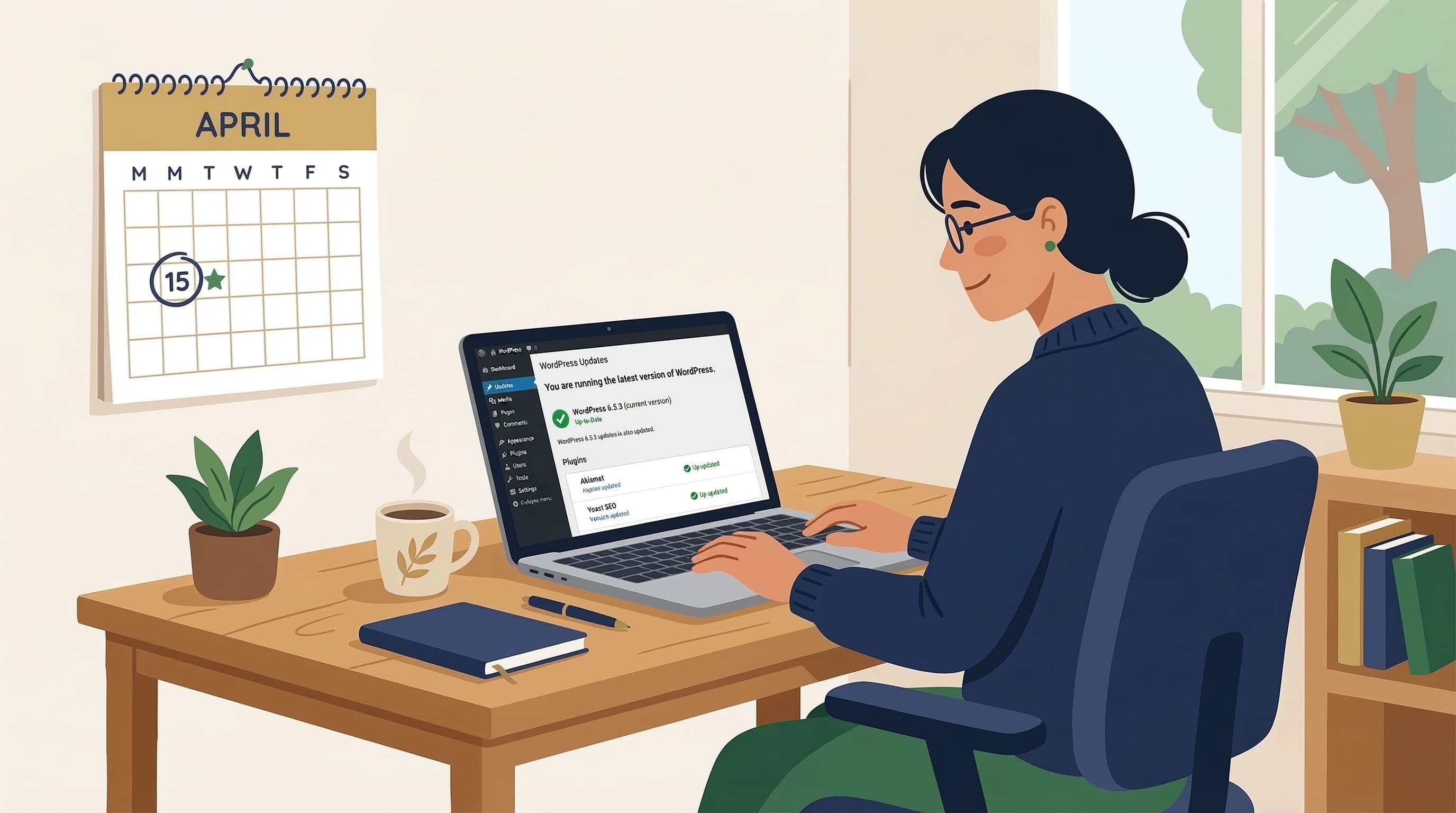
WordPress maintenance routine
Automated
- WordPress core minor versions auto-update on release
- Plugin minor and security patch updates auto-update on release
- Daily backups run at 2am via UpdraftPlus to Google Drive, retaining 30 days of history
- Wordfence sends email alerts for critical security events and vulnerable plugin detections
Weekly Manual Session (15 minutes)
- Check dashboard Updates page for pending major updates
- Review changelog notes for any major plugin or core version available
- Apply minor updates that did not auto-apply
- Confirm the most recent backup completed successfully
Monthly
- Check theme updates and apply manually after changelog review
- Run a Sucuri SiteCheck scan to confirm no malware or blacklisting issues
- Review Wordfence security report for any flagged events from the previous month
Annually
- Review PHP version against WordPress recommended specification
- Schedule PHP upgrade on staging if behind current recommendation
- Full site audit: unused plugins, inactive themes, admin user list review
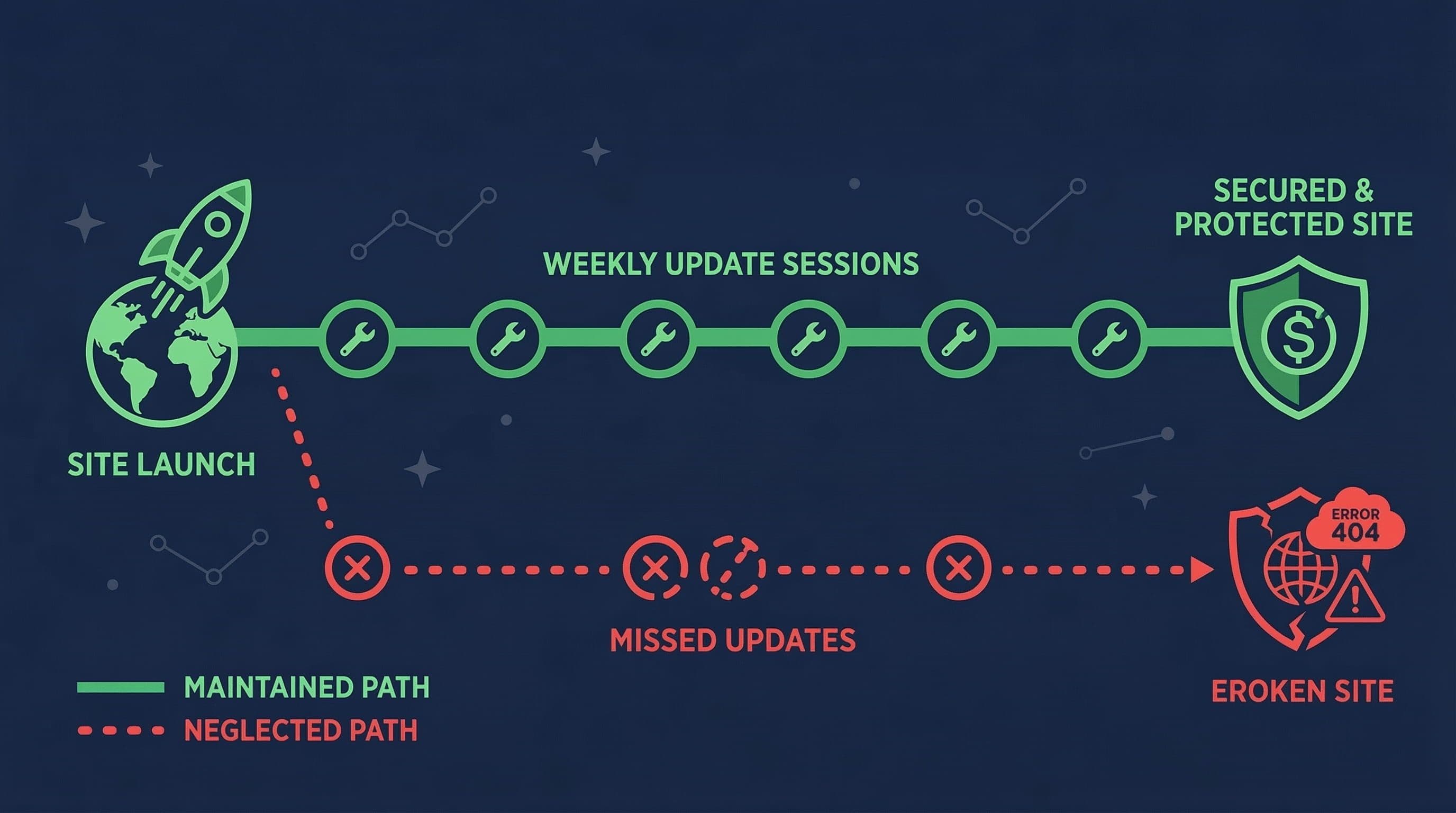
Consistent updates
This cadence takes roughly 15 minutes per week and 30 minutes per month. The annual audit adds another hour once a year. That is the full maintenance load for a properly configured service business WordPress site.
Related Articles
- Should You Turn On Automatic Updates in WordPress? The Honest Answer
- The WordPress Security Checklist Every Small Business Owner Should Print Out
- How to Set Up a WordPress Security Plugin the Right Way (Step-by-Step)
Frequently Asked Questions
How often should you update WordPress core?
Minor WordPress core updates should be applied within 48 hours of release, ideally via auto-update. Major core versions should be reviewed and applied within one week, with staging environment testing for sites with custom functionality.
What happens if you don't update WordPress?
Outdated WordPress sites accumulate known vulnerabilities that automated bots actively exploit. Beyond security, outdated installations cause compatibility errors with plugins and themes and degrade site performance over time.
Is it safe to update WordPress plugins immediately?
Security patches should be applied immediately. Major plugin version updates should be reviewed first: check the changelog for breaking changes, then test on staging if the plugin handles critical site functions like payments or forms.
How long can you go without updating WordPress?
No more than one week for any security-flagged update. For general maintenance, a monthly update pass is the minimum acceptable cadence. Sites that go months without updates accumulate compounding vulnerability exposure that becomes increasingly difficult to resolve.
Do I need a developer to update WordPress?
Minor updates and standard plugin updates can be applied by any site owner from the WordPress dashboard. Major core updates, PHP version upgrades, and updates for complex plugins like WooCommerce benefit from developer review, especially if the site has custom functionality or no staging environment.