Can You Secure WordPress Without a Security Plugin?
Yes, you can secure WordPress without a plugin, but it requires server access and technical knowledge. Here's exactly what's involved and who it's right for.
The honest technical answer for developers and DIY-minded owners, including what is achievable, what requires server access, and what cannot be replicated without a plugin.
By Sheikh Hassaan — Web developer
Quick Answer
Yes, you can secure WordPress without a security plugin. It requires a hosting provider with a server-level firewall, manual .htaccess and wp-config.php hardening, correct file permissions, XML-RPC disabled at the server level, and an external malware scanner. It is technically achievable but requires server access, comfort with editing core configuration files, and ongoing manual monitoring. For most business owners, a properly configured free security plugin is enough and requires less ongoing attention.
Why Someone Would Want to Secure WordPress Without a Plugin
This is a legitimate question from a specific type of user, not someone trying to cut corners, but someone with a genuine reason to minimize their plugin stack.
The most common motivations:
- Performance concerns — security plugins, particularly Wordfence, add processing overhead on every page request. On a high-traffic site or a site on limited shared hosting resources, this overhead is measurable
- Plugin fatigue — sites with 20+ active plugins carry compounding compatibility risk with every update. Removing a security plugin reduces one more variable
- Managed hosting environments — hosts like WP Engine, Kinsta, and Cloudways include server-level firewalls and malware scanning. Installing a competing security plugin on top of existing server-level protection is redundant
- Developer preference — experienced WordPress developers often prefer direct server configuration over plugin abstraction layers
All of these are valid reasons. The question is whether the plugin-free approach actually delivers equivalent protection, and what it costs in time and technical complexity to get there.
What a Security Plugin Actually Does, And What Replaces It
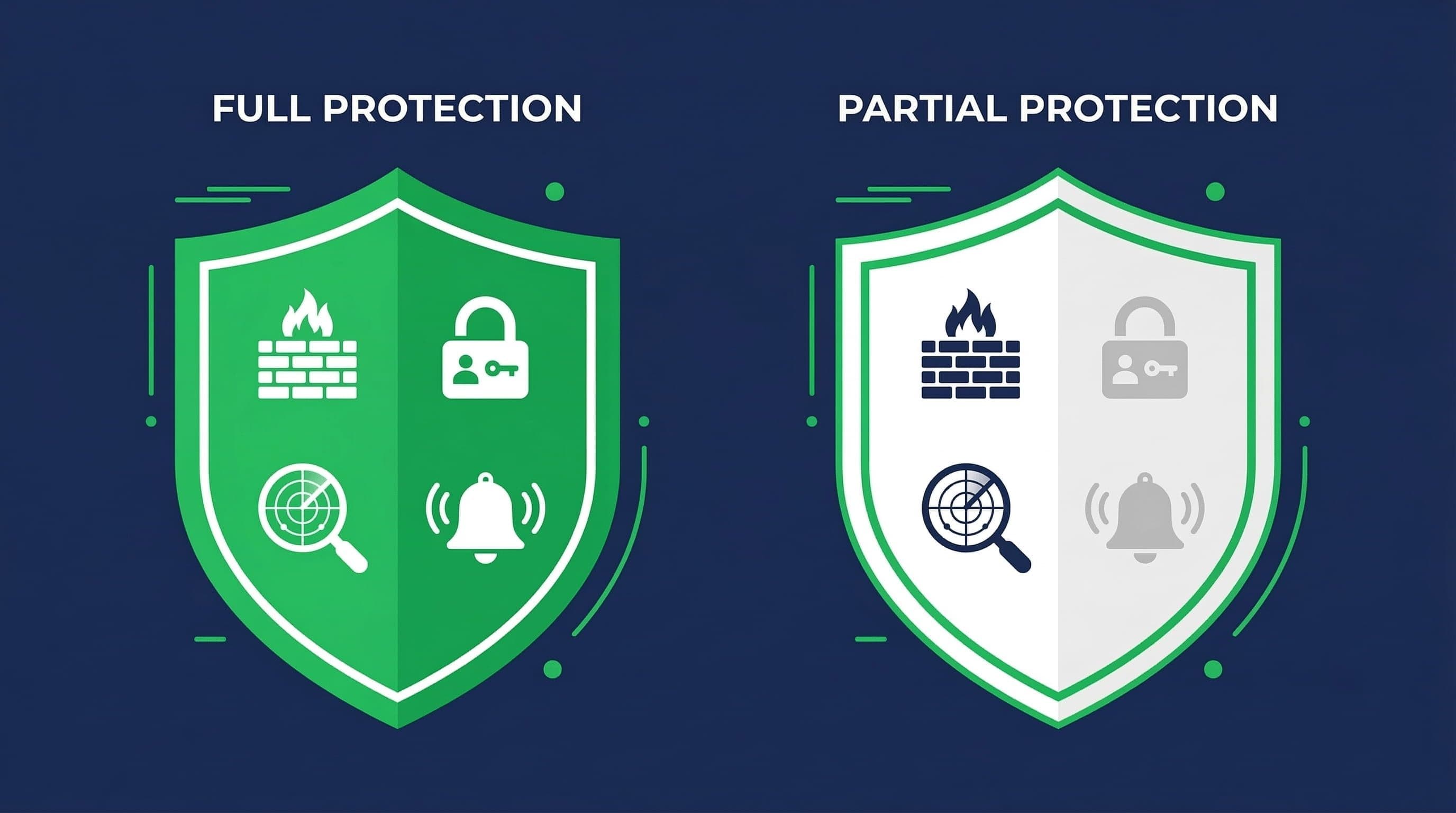
WordPress security plugin vs manual setup
Before removing or bypassing a security plugin, it helps to map out exactly what functions it performs and what fills each gap without it.
- Web Application Firewall (WAF): blocks malicious requests before they reach WordPress. Without a plugin, this requires a hosting-level WAF (Cloudflare, Sucuri, or a host-provided solution) or manual .htaccess rules
- Login protection and brute force blocking: limits login attempts, enforces lockouts, blocks known malicious IPs. Without a plugin, this requires .htaccess rules or wp-config.php edits, and cannot match a plugin's real-time IP reputation database
- Two-factor authentication: requires a plugin or custom development. There is no native WordPress mechanism for 2FA without third-party code
- Malware scanning: checks files against known signatures. Without a plugin, this requires an external scanner like Sucuri SiteCheck or manual file review
- Real-time alerts: email notifications for login attempts, file changes, and blocked attacks. Without a plugin, this requires server-level log monitoring or an external service
The honest picture: some of these functions have practical alternatives. Others, specifically 2FA, real-time IP blocklist access, and automated malware scanning, are difficult or impractical to replicate at plugin quality without one.
Plugin vs. No Plugin — Side-by-Side Comparison
Use this to make an informed decision based on your actual hosting environment and technical comfort level.
| Protection Layer | With Security Plugin | Without Plugin (Manual) |
|---|---|---|
| Firewall (WAF) | Built-in, one-click setup | Hosting-level WAF or .htaccess rules required |
| Login protection | Dashboard toggle | Manual .htaccess or wp-config edits |
| Malware scanning | Automated weekly scans | Manual file review or external scanner only |
| 2FA | Built-in, free | Separate plugin or server-side setup |
| Brute force blocking | Automatic after config | Login attempt limits via code or host |
| Real-time alerts | Email notifications included | Must configure via server or external tool |
| Setup time | 30–45 minutes | 2–4 hours minimum (technical knowledge required) |
| Best for | Most business owners | Developers with server access |
How to Secure WordPress Without a Security Plugin
The following steps cover the plugin-free security configuration in full. Each step is achievable by someone with FTP or file manager access and comfort editing configuration files. If any of these steps are unfamiliar, the plugin approach covered in this cluster's setup guide is the more appropriate path.
Securing WordPress without a security plugin
Step 1 — Use a Host With a Server-Level WAF
What to do: This is the prerequisite that makes the rest of the plugin-free approach viable. Choose a hosting provider that includes a server-level Web Application Firewall, Cloudflare Pro or Business plan, WP Engine, Kinsta, Nexcess, or Cloudways with Cloudflare integration. A server-level WAF filters malicious traffic before it reaches WordPress entirely, handling the most critical function of a security plugin at the infrastructure level.
Why it matters: Without a WAF, your site has no mechanism to block known malicious request patterns, SQL injection attempts, cross-site scripting, known exploit signatures, before they reach your application. A plugin handles this at the WordPress level. A host-level WAF handles it before the request ever touches WordPress, which is both more effective and has zero performance impact on the application.
Pro Insight:
Cloudflare's free tier provides basic WAF-like protection through its proxy network but does not include the full WAF ruleset. The pro plan at $20/month includes the WordPress-specific WAF rules that block the attack patterns targeting WordPress installations. If you are on Cloudflare free, you do not have the WAF coverage you may assume you have.
Step 2 — Harden wp-config.php
What to do: The wp-config.php file contains database credentials and core configuration. Add the following hardening rules. First, move the file one directory above the WordPress root if your server configuration allows it — WordPress automatically looks for it there. Second, add these lines to the file itself:
- define('DISALLOW_FILE_EDIT', true); — disables the theme and plugin editor in the dashboard, preventing an attacker with admin access from injecting code directly
- define('DISALLOW_FILE_MODS', true); — prevents plugin and theme installation from the dashboard (use this only if you install plugins via FTP or WP-CLI)
- define('FORCE_SSL_ADMIN', true); — forces SSL on all admin pages
- define('WP_DEBUG', false); — ensures debug mode is off in production, preventing error messages from exposing file paths
Why it matters: These four constants harden the most commonly exploited dashboard-level vulnerabilities without requiring any plugin. An attacker who gains admin access to a site with DISALLOW_FILE_EDIT enabled cannot inject malicious code through the dashboard editor — a common post-access attack method.
Pro Insight:
Back up wp-config.php before editing it. A syntax error in this file takes the entire site offline until the error is corrected. Edit via a local text editor, verify the syntax, then upload the corrected file via FTP. Do not edit it directly in the hosting file manager without a local backup copy.
Step 3 — Restrict wp-admin Access via .htaccess
What to do: If you access the WordPress dashboard from consistent IP addresses, you can restrict the wp-admin directory to only those IPs using .htaccess rules. Create or edit the .htaccess file inside the wp-admin directory (not the root .htaccess) and add:
order deny,allow / deny from all / allow from YOUR.IP.ADDRESS.HERE
Replace YOUR.IP.ADDRESS.HERE with your actual IP address. Add multiple 'allow from' lines for each IP that needs access — office, home, team members.
Why it matters: IP allowlisting for the admin area means an attacker cannot reach the login page from any IP not on the whitelist. They receive a 403 Forbidden response before ever seeing the login form. This is more restrictive than any login attempt limit — the attack surface disappears entirely for unlisted IPs.
Pro Insight:
This approach breaks if your IP address changes — which it does on most residential and mobile connections. Before implementing IP allowlisting, confirm your IP is static, or configure access from a VPN with a consistent exit IP. Getting locked out of the wp-admin directory requires FTP access to remove or edit the .htaccess file.
Step 4 — Disable XML-RPC at the Server Level
What to do: Add the following to the root .htaccess file to block all XML-RPC requests at the server level, before they reach WordPress:
<Files xmlrpc.php> / order deny,allow / deny from all / </Files>
This is equivalent to disabling XML-RPC through a plugin but executes at the server level, which is marginally faster and does not require a plugin to be active.
Why it matters: XML-RPC provides an authentication endpoint that bypasses standard login attempt limits. Blocking it at the server level closes this parallel attack vector without any plugin dependency.
Pro Insight:
Before blocking XML-RPC, confirm you are not using the WordPress mobile app, Jetpack, or any publishing tool that requires XML-RPC connectivity. After adding the .htaccess rule, test it by visiting yoursite.com/xmlrpc.php directly — you should receive a 403 response, not the default XML-RPC page.
Step 5 — Implement Login Hardening Without a Plugin
What to do: Without a plugin, login hardening requires two approaches. First, change the admin username from 'admin' to something unique — this cannot be done from the standard dashboard user settings but can be done by creating a new admin user and deleting the original. Second, use a strong unique password generated by a password manager. Third, consider adding HTTP basic authentication on top of the WordPress login form — this adds a second username/password prompt before the WordPress login page loads, using server-level authentication that bots cannot bypass.
Basic authentication can be configured via .htaccess and a .htpasswd file. Your hosting control panel may include a tool to set this up without manual file editing.
Why it matters: Without login attempt limits from a plugin, login hardening relies on credential strength and obscurity. A unique username combined with a 20+ character random password makes credential guessing computationally impractical even without attempt limits. HTTP basic authentication adds a second layer that stops bots before they reach the WordPress login form.
Pro Insight:
Two-factor authentication is the one login security measure that genuinely cannot be replicated without a plugin or custom development. If your site handles any sensitive client data or business-critical functions, the absence of 2FA in a plugin-free setup is a meaningful gap that should be acknowledged rather than ignored.
Step 6 — Set Correct File Permissions
What to do: WordPress core files should have specific permission settings that prevent unauthorized modification. The standard correct permissions are:
- Directories: 755 (owner can read/write/execute, others can read/execute)
- Files: 644 (owner can read/write, others can read only)
- wp-config.php: 600 (owner read/write only — no access for others)
- .htaccess: 644
Set these via your hosting file manager or via FTP client (FileZilla shows and edits permissions). Run a permissions audit periodically — some plugin installations change file permissions as part of their setup process.
Why it matters: Overly permissive file permissions — 777 on directories or files — allow any process on the server to write to those files. On shared hosting, this is a direct path for a compromised neighboring account to modify your WordPress files. Correct permissions remove that vector.
Pro Insight:
Never set files or directories to 777 permissions, even temporarily during troubleshooting. It is a common suggestion in older hosting forums and it is always wrong. If a plugin or theme installation fails due to permissions, the correct fix is adjusting the specific directory that needs write access, not opening everything to 777.
Step 7 — Use an External Malware Scanner
What to do: Without an on-site plugin scanner, use Sucuri SiteCheck (free, web-based) monthly to scan your site against known malware signatures. For server-level file scanning, ask your hosting provider whether they include server-side malware scanning — managed hosts typically do. Google Search Console also flags security issues when it detects malware during crawling.
Why it matters: Without scheduled automated scanning, malware detection relies on external tools and manual review. The gap between an infection occurring and its discovery is longer in a plugin-free setup — which means more time for the infection to affect SEO, visitors, and hosting status before it is identified and cleaned.
Pro Insight:
Set a monthly calendar reminder to run a Sucuri SiteCheck scan. It takes two minutes and is free. In a plugin-free setup, this is the closest equivalent to automated malware scanning — it is less comprehensive than an on-site plugin scan but catches the most common infection signatures.
What You Cannot Replicate Without a Plugin
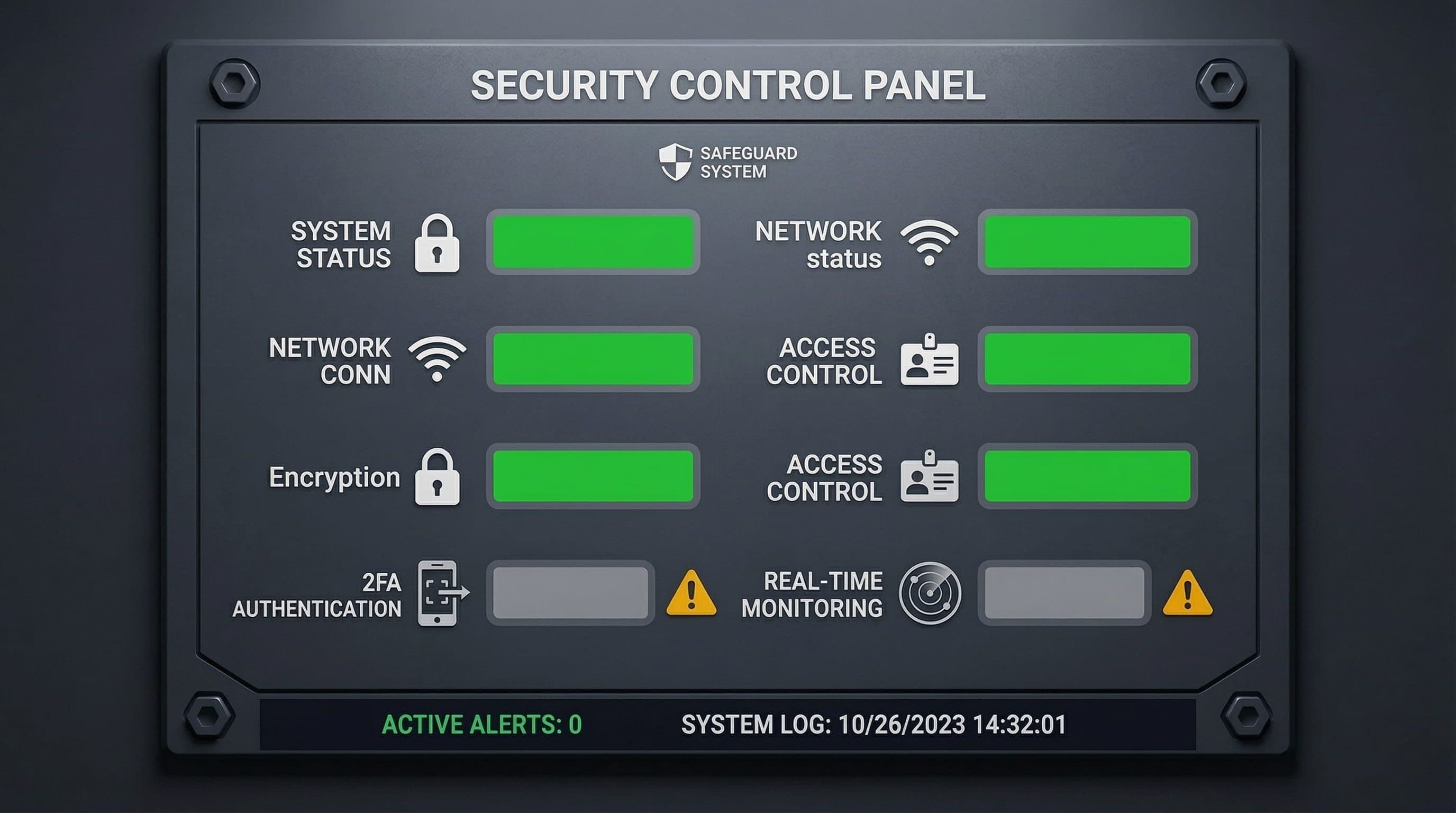
2FA and real-time monitoring
Honesty matters here. The plugin-free approach covers most security functions reasonably well. These three it does not:
- Real-time 2FA: Two-factor authentication for WordPress logins requires either a plugin or custom authentication code. There is no native WordPress mechanism for it. A plugin-free site cannot have 2FA on the standard login form without additional code
- Real-time IP reputation blocklist: Security plugins like Wordfence maintain continuously updated databases of known malicious IP addresses. When a request comes from a flagged IP, it is blocked immediately. Replicating this without a plugin requires either a paid Cloudflare plan with threat intelligence or manual IP blocking — which cannot match the scale or currency of a dedicated security plugin's blocklist
- Automated file change detection: Security plugins monitor your WordPress files and alert you immediately when a file is modified unexpectedly — which is often the first sign of a compromise. Without a plugin, file change detection requires server-level tools or manual comparison, neither of which runs automatically and alerts you in real time
Common Mistakes in Plugin-Free Security
Assuming Managed Hosting Replaces All Plugin Functions
Managed hosts provide excellent server-level protection, WAF, DDoS mitigation, malware scanning at the infrastructure level. They do not provide 2FA for WordPress logins, real-time file change monitoring, or brute force login protection at the application level. A site on managed hosting without any login hardening is still vulnerable to credential attacks even with the host's security active.
Editing .htaccess Without a Backup
A syntax error in .htaccess can take down the entire site or specific sections of it, depending on what was edited. Always maintain a backup copy of the current .htaccess before making any changes. Test changes on a staging environment if one is available. Know how to restore via FTP before editing — if something breaks, you need to be able to fix it without dashboard access.
Setting wp-admin IP Restrictions Without a Static IP
IP allowlisting is effective when IP addresses are consistent. Most residential broadband connections use dynamic IPs that change periodically. A business owner who implements IP allowlisting on their home IP address and then finds themselves locked out when the IP changes — away from home, on a different network — has created a self-inflicted access problem that requires FTP or hosting panel access to resolve.
Treating the One-Time Setup as Ongoing Security
The plugin-free setup requires more ongoing manual attention than a configured security plugin. Sucuri SiteCheck scans do not run automatically. IP blocklists do not update automatically. File permissions do not audit themselves. A security plugin performs these functions continuously without attention. The plugin-free approach requires the site owner to proactively maintain vigilance — which most business owners are not positioned to do consistently alongside running a business.
The Honest Verdict — Who This Approach Is Actually For
Plugin-free WordPress security is the right approach for a specific type of operator:
- A developer or technical owner with comfortable FTP and server configuration experience
- A site on managed hosting with a server-level WAF already active
- Someone willing to do monthly manual scans and periodic configuration audits
- A site that does not need 2FA on login — or where 2FA is handled through a separate lightweight plugin specifically for that function
It is not the right approach for:
- A non-technical business owner who wants security that runs without ongoing attention
- A site on shared or budget hosting with no server-level WAF
- Anyone who is not prepared to edit .htaccess and wp-config.php files directly
- A site that handles sensitive client data where 2FA is a meaningful protection requirement
The performance case for removing a security plugin is also weaker than it appears. A properly configured lightweight security option, Solid Security free on managed hosting, Wordfence with Live Traffic logging disabled on shared hosting, adds negligible overhead on a well-resourced server. The performance argument makes sense on genuinely under-resourced shared hosting. On any decent managed plan, it largely does not.
Related Articles
- The Best WordPress Security Plugin for Small Business Websites (2026)
- How to Set Up a WordPress Security Plugin the Right Way (Step-by-Step)
- Is the Free Version of Wordfence Actually Enough to Protect Your Business Website?
Frequently Asked Questions
Can WordPress be secure without a security plugin?
Yes, with managed hosting that includes a server-level WAF, plus .htaccess hardening, correct file permissions, and XML-RPC blocked. The main gaps: no native 2FA, no automated file change detection, no real-time IP blocklist.
Does Cloudflare replace a WordPress security plugin?
No. Cloudflare free covers CDN and DDoS protection. Pro adds WordPress WAF rules. Neither covers login protection, 2FA, or malware scanning — those still require a plugin.
Will removing a security plugin make my WordPress site faster?
Maybe. Wordfence adds overhead, especially with Live Traffic logging enabled. On managed hosting the impact is minimal. Try disabling Live Traffic first — that often solves the performance issue without removing the plugin.
What is the minimum security setup for WordPress without plugins?
Managed hosting with WAF, DISALLOW_FILE_EDIT in wp-config.php, unique admin username, strong password, XML-RPC blocked via .htaccess, correct file permissions, and a monthly Sucuri SiteCheck scan.
Can I use just one lightweight plugin for 2FA and nothing else?
Yes, this is the best middle ground. Use WP 2FA as a standalone plugin and handle everything else at the server level. Minimal plugin footprint, no gaps in login security.