Should You Turn On Automatic Updates in WordPress?
Automatic WordPress updates: safe or risky? The honest answer depends on what type of update, here's exactly what to turn on and what to test first.
Not all WordPress updates carry the same risk. Here is exactly which ones to automate, which ones to test first, and why the binary yes/no answer most guides give you is wrong.
By Sheikh Hassaan — Web developer for service businesses
Why This Question Has No Single Right Answer
Most articles on this topic take one of two positions: turn everything on and stay secure, or turn everything off and stay in control. Both are wrong for a business website.
The all-on approach is how sites break unexpectedly. A major plugin update ships with a breaking change. A theme update overwrites custom CSS. WooCommerce releases a version incompatible with a payment gateway. The site goes down at 2am on a Tuesday and the business owner finds out when a client calls to say the booking form isn't working.
The all-off approach is how sites get compromised. A plugin vulnerability is disclosed publicly. A patch is released. Sites running the unpatched version become targets within hours. An owner who manually updates once a month has a 30-day exposure window every time a security patch drops.
The correct approach is selective. Understand what each type of update does, what can go wrong, and configure automation accordingly. That is what this article covers.
The Different Types of WordPress Updates — And Why They Are Not Equal
WordPress Core — Minor Updates
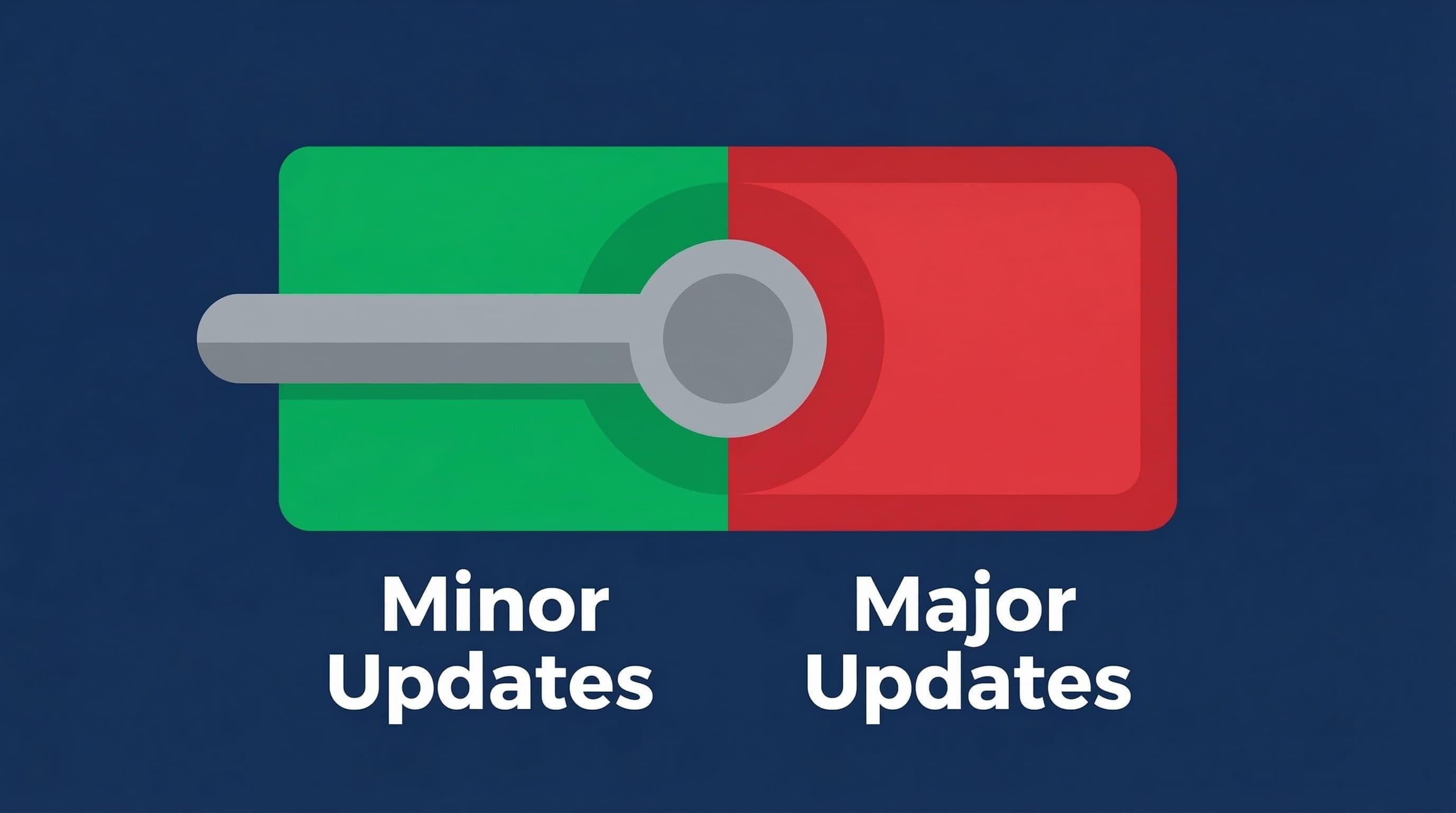
Minor version updates follow the pattern x.x.1, x.x.2 — for example, 6.4.1 to 6.4.2. These are maintenance and security releases. They fix bugs, patch known vulnerabilities, and make no architectural changes to how WordPress functions. The risk of a minor update breaking a site is extremely low. The risk of not applying a security patch quickly is real and documented.
Recommendation: Enable automatic updates for minor core versions without hesitation.
WordPress Core — Major Updates
Major version updates follow the pattern x.x to x.y — for example, 6.4 to 6.5. These introduce new features, change core functionality, and occasionally deprecate code that plugins and themes rely on. A major update that is incompatible with a key plugin or custom theme element can break site functionality in ways that are not immediately obvious — a contact form stops submitting, an animation breaks, a checkout flow errors.
Recommendation: Do not automate major core updates. Test on a staging environment first, then apply to the live site within a week of confirming compatibility.
Plugin Updates
Plugin updates range from minor security patches to complete feature overhauls with entirely rewritten codebases. A security patch for a minor issue carries minimal risk. A major version update for a plugin that handles forms, payments, or page layout carries significant risk if it ships with breaking changes.
Most plugin updates fall somewhere in the middle. The practical approach is to enable auto-updates for plugins with a track record of stable releases and manually review changelog notes before applying major version updates for critical functionality plugins.
Recommendation: Enable auto-updates for most plugins with minor releases. Manually apply major version updates for plugins that handle core site functionality — forms, payments, SEO, page builders.
Theme Updates
Theme updates are the highest-risk category for auto-update conflicts. If the active theme contains any customization — and most business sites do — a theme update can overwrite that customization entirely. Child themes mitigate this risk but do not eliminate it. Parent theme updates can change template structure that child themes depend on.
Recommendation: Never automate theme updates. Apply manually after reviewing the changelog and testing on a staging environment.
Pro Insight:
The sites most at risk from auto-updates are those with heavy customization and no staging environment. The sites least at risk are those built with standard, well-maintained plugins on a clean theme with no direct file edits. The answer to 'should I enable auto-updates' depends significantly on how your site was built.
Most business owners I work with prefer having update management configured from the start — so the right things update automatically and the risky ones are flagged for review rather than left to chance.
How to Set Up Auto-Updates the Right Way
Step 1 — Enable Auto-Updates for Core Minor Versions
What to do: In your WordPress dashboard, go to Dashboard > Updates. You will see a notice about automatic background updates for maintenance and security releases. Confirm this is enabled. Alternatively, in your wp-config.php file, ensure the line define('WP_AUTO_UPDATE_CORE', 'minor'); is present or add it. Most modern WordPress installations have this enabled by default.
Why it matters: Minor core updates are where critical security patches ship. Being on the latest minor version within days of release rather than weeks closes real vulnerability windows. This is the lowest-risk, highest-value auto-update configuration available.
Pro Insight:
Managed WordPress hosts like WP Engine and Kinsta handle core minor updates automatically at the platform level. If you are on managed hosting, this step may already be covered by your host — check your hosting dashboard before modifying wp-config.php.
Step 2 — Enable Auto-Updates for Security-Flagged Plugins
What to do: In your WordPress dashboard, go to Plugins > Installed Plugins. For each plugin, there is an 'Enable auto-updates' link in the right column. Enable this for all standard plugins that do not handle critical site functionality — SEO plugins, image optimization, caching, security. For plugins like WooCommerce, your page builder, or any plugin with a complex settings configuration, leave auto-updates off and review manually.
Why it matters: The plugins most commonly exploited in WordPress attacks are popular plugins with large install bases. WPScan and similar vulnerability databases publish disclosed vulnerabilities publicly — attackers use these databases to identify unpatched targets. Staying current on plugin updates, especially for widely-used plugins, is the primary defense against this attack vector.
Pro Insight:
The WPScan vulnerability database is public. When a plugin vulnerability is disclosed, it is visible to attackers immediately. Sites running the vulnerable version are actively targeted within 24–48 hours of disclosure in many cases. Auto-updates for minor plugin versions are a direct response to this timeline.
Step 3 — Set Up a Staging Environment for Major Updates
What to do: Most managed WordPress hosts include a one-click staging environment — a copy of the live site where you can test updates without affecting real visitors. WP Engine, Kinsta, and SiteGround Business all include this. On hosts without staging, plugins like WP Staging create a local copy within the same hosting account.
Before applying any major version update — WordPress core, WooCommerce, page builder, forms plugin — apply it to the staging environment first. Confirm the site functions correctly. Then apply to the live site.
Why it matters: Staging removes the risk from major updates by absorbing the failure before it affects real visitors. A broken staging environment is an inconvenience. A broken live site during business hours is a revenue problem.
Pro Insight:
Test specifically the functions that matter most to your business after every major update: contact form submission, booking flow, checkout process, newsletter signup. These are the conversion points — a broken form on a staging site tells you what you would have lost on the live site.
Step 4 — Configure Update Notifications
What to do: Install WP Mail SMTP or confirm your hosting environment delivers WordPress system emails reliably. WordPress sends email notifications when updates are applied automatically. Without reliable email delivery, these notifications go nowhere and you have no visibility into what your site is doing.
Set email alert preferences to notify you when: auto-updates complete successfully, auto-updates fail, and new major versions are available for manual review. Wordfence also notifies you when plugins with known vulnerabilities are installed on your site — which is a useful trigger for prioritizing manual updates.
Pro Insight:
WordPress's built-in email system frequently fails on budget shared hosting due to server mail configuration issues. If you are not receiving WordPress system emails, configure WP Mail SMTP with a transactional email service like Mailgun or SendGrid. This takes 20 minutes and ensures you actually receive the notifications the system is trying to send.
Step 5 — Run Daily Backups Before Any Auto-Update Policy
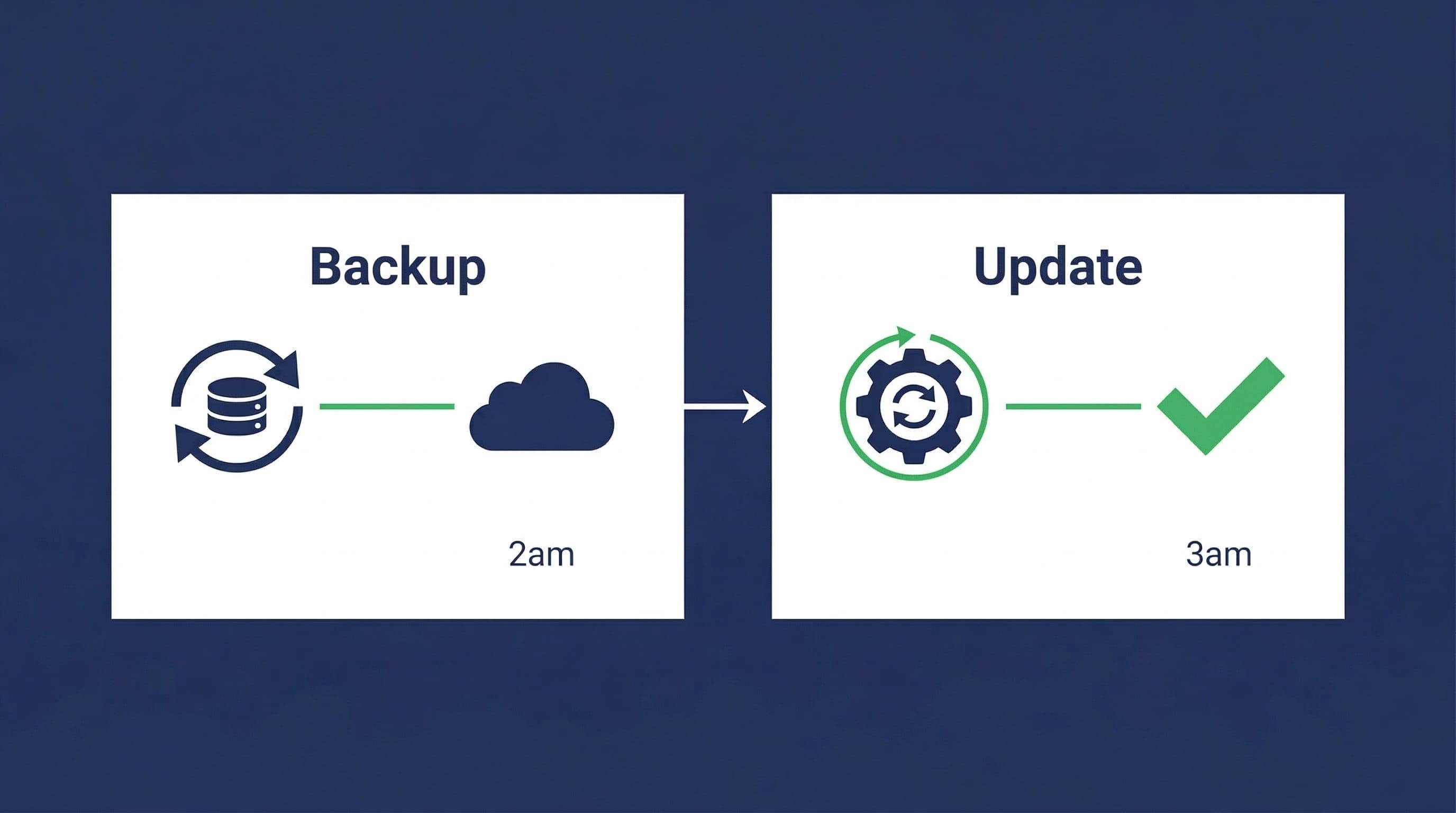
What to do: Before enabling any auto-update configuration, confirm daily automated backups are running with off-site storage. UpdraftPlus free with Google Drive storage handles this for most service business sites. The backup must run before the update window — if auto-updates run at 3am, the backup should run at 2am.
Why it matters: A failed auto-update on a site with a current backup is recoverable in 15 minutes. The same failure on a site with no backup or a week-old backup means manual reconstruction or professional recovery at cost. Backups are the safety net that makes auto-updates a manageable risk rather than a gamble.
Pro Insight:
Confirm the backup runs successfully after enabling auto-updates for the first time. Check the UpdraftPlus log or your Google Drive folder the morning after setup to verify a backup file was created with the correct timestamp. A misconfigured backup that silently fails leaves no safety net.
The Update Management Setup Used on Client Sites
This is the standard update configuration applied to service business WordPress sites:
Auto-Updates Enabled
- WordPress core minor versions — automatic
- Plugin minor version patches — automatic for all non-critical plugins
- Security-flagged plugin updates — automatic regardless of version
Manual Review Required
- WordPress core major versions — staged and tested before live deployment
- Page builder major updates (Elementor, Divi, Beaver Builder) — staged first
- Forms plugin major updates — staged and tested with form submission
- All theme updates — manual, changelog reviewed first
Supporting Infrastructure
- Daily backups via UpdraftPlus to Google Drive — runs before the auto-update window
- Staging environment available for major update testing — either host-provided or WP Staging plugin
- WordPress system email delivery confirmed via WP Mail SMTP
- Wordfence notifications enabled for vulnerable plugin alerts
This configuration keeps the site current on security patches automatically while routing anything with meaningful change risk through a manual review process. It takes about 30 minutes to set up and requires minimal ongoing attention.
Related Articles
- The WordPress Security Checklist Every Small Business Owner Should Print Out and Forget About
- How to Set Up a WordPress Security Plugin (Step-by-Step Guide)
Frequently Asked Questions
Is it safe to turn on automatic updates for WordPress?
For minor core versions and security-flagged plugin patches, yes — it is safe and recommended. For major core versions, major plugin updates, and theme updates, automatic updatses introduce meaningful risk of breaking site functionality. The safe approach is selective: automate low-risk security updates, test high-risk feature updates on staging before applying to the live site.
What happens if a WordPress auto-update breaks my site?
If you have a current backup — which should be running daily — recovery takes 15 to 30 minutes: restore the backup, identify the conflicting update, disable it, and investigate the conflict. Without a backup, recovery requires manual reconstruction or professional help. This is why backup configuration must precede any auto-update policy. The update is not the risk — the absence of a backup is the risk.
Should I enable auto-updates for all plugins?
For most plugins on a standard service business site, enabling auto-updates for minor versions is reasonable and beneficial. The exception is plugins that handle critical site functionality — WooCommerce, page builders, forms plugins, payment gateways. These should be updated manually after reviewing the changelog and testing on staging. The more central a plugin is to your site's function, the more carefully its updates should be managed.
Do managed WordPress hosts handle updates automatically?
Managed hosts like WP Engine and Kinsta handle WordPress core updates and server-level security patches automatically. They do not handle plugin updates, theme updates, or custom code maintenance. A site on managed hosting with 20 outdated plugins is still vulnerable to plugin-level attacks regardless of what the host is managing. Hosting security and plugin maintenance are separate responsibilities that both require attention.
How often should I manually check for WordPress updates?
With a selective auto-update configuration in place for minor versions and security patches, a weekly manual check is sufficient for major version updates and plugin changelog reviews. A 10-minute weekly dashboard review — check for major updates available, review any auto-update notification emails, confirm backups completed successfully — is the ongoing maintenance load for a properly configured site.
Can I automate updates without a staging environment?
For minor version auto-updates only, yes — the risk is low enough that staging is not essential. For major version updates, proceeding without staging means applying directly to the live site without a test run. This is manageable on a simple site with standard plugins and no custom code. For sites with complex functionality, custom theme elements, or multiple interdependent plugins, the staging step is not optional — the cost of a failed update on a live site outweighs the inconvenience of setting up staging once.