How to Fix Your Real Estate Website's Page Speed Without Breaking the Property Gallery
Slow real estate website killing your leads? Fix page speed without breaking your property gallery, exact steps, tools, and settings used on real client sites.
Property photography is what sells. A speed fix that destroys your gallery is not a fix. Here is the exact process for getting a fast real estate site without sacrificing image quality or layout.
By Sheikh Hassaan — WordPress developer for service businesses
Quick Answer
Fix real estate website page speed in this order: compress existing images using ShortPixel without reuploading, enable lazy loading in the gallery plugin settings, install WP Rocket or LiteSpeed Cache, connect Cloudflare as a free CDN, defer non-critical scripts, and upgrade hosting if server response time exceeds 600 milliseconds. None of these steps require touching the gallery layout or removing images.
Why Real Estate Sites Are Slower Than Almost Any Other Business Type
A typical service business website has a hero image, a few section photos, and a headshot. A real estate website has dozens of high-resolution property images per listing, gallery pages that load 20 to 40 images simultaneously, and often a homepage slider cycling through multiple full-width photos. The image load is not comparable.
The average unedited property photo from a professional photographer runs 4 to 8 megabytes per image. A listing gallery with 15 photos at that size is 60 to 120 megabytes of data loading in one page request. On a UK residential broadband connection that loads in seconds. On a mobile phone on 4G it takes long enough for most visitors to leave before the page finishes rendering.
The business cost of this is direct and measurable. Google research shows that a one-second increase in mobile load time reduces conversions by approximately 20 percent. For a real estate agent whose site is taking six or seven seconds to load on mobile, the majority of mobile visitors are leaving before the first property image is fully visible. These are buyers and sellers who found the site, loaded it, and left before seeing what the agent can offer.
The complication specific to real estate is that the standard speed advice, compress and remove images, conflicts directly with the product. A luxury property site that shows compressed, visually degraded images has a different problem. This guide addresses both requirements: fast load times and uncompromised visual quality.
The Speed Audit Table: Find the Problem Before Applying the Fix
Run the site through Google PageSpeed Insights and GTmetrix before making any changes. Note the specific issues flagged rather than just the score. This table maps the most common real estate speed issues to their fix.
| Speed Issue | Typical Impact | Fix |
|---|---|---|
| Uncompressed property images | 3 to 8 second extra load time | ShortPixel or Imagify compression before upload |
| No caching plugin | Full page rebuild on every visit | WP Rocket or LiteSpeed Cache |
| No CDN | Slow delivery to distant visitors | Cloudflare free tier or host-included CDN |
| Render-blocking scripts | Page appears blank while JS loads | Defer or async non-critical scripts |
| Gallery plugin loading all images at once | Long initial page load for gallery pages | Enable lazy loading in gallery settings |
| Budget shared hosting | Slow server response time | Upgrade to managed WordPress hosting |
| Unoptimised database | Slow admin and page queries | WP-Optimize for database cleanup |
Most real estate sites I work on have three or four of these issues active simultaneously. The biggest single impact almost always comes from image compression and caching. Fix those two first before touching anything else.
How to Fix Each Speed Problem Without Touching the Gallery
Step 1 — Compress All Existing Property Images Without Reuploading
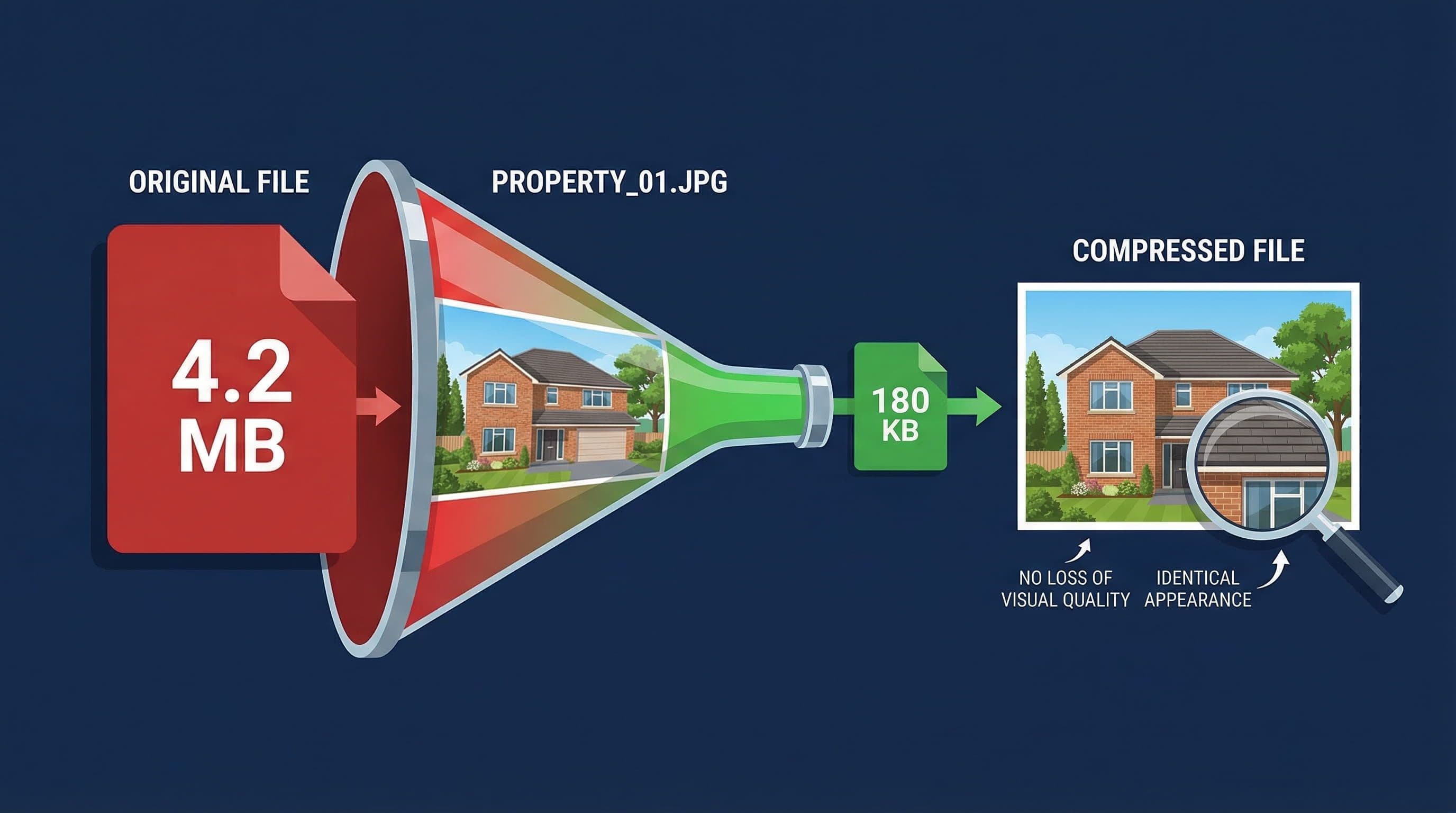
WordPress image compression for real estate websites
What to do: Install ShortPixel Image Optimizer from the WordPress plugin directory. In the ShortPixel settings, choose Lossy compression mode for standard property photos and set the maximum image width to 1800 pixels. Run the bulk compression tool on the existing media library. ShortPixel processes images already in the WordPress media library without requiring any reuploading or manual editing.
Why it matters: This single step typically reduces total image file size by 60 to 80 percent with no visible quality degradation at normal viewing sizes. A gallery page that previously loaded 90 megabytes of image data loads 18 to 36 megabytes after compression. The gallery layout, image dimensions, and visual appearance on screen remain identical. Only the file size changes.
Pro Insight:
Use Lossy compression for property exteriors, street scenes, and wide shots. Use Glossy mode for interior close-ups and detail shots where subtle texture matters. ShortPixel allows per-image compression mode selection. The difference in file size between Lossy and Glossy is significant; the difference in visual quality on a browser screen is imperceptible to most viewers.
Step 2 — Enable Lazy Loading on Gallery Pages
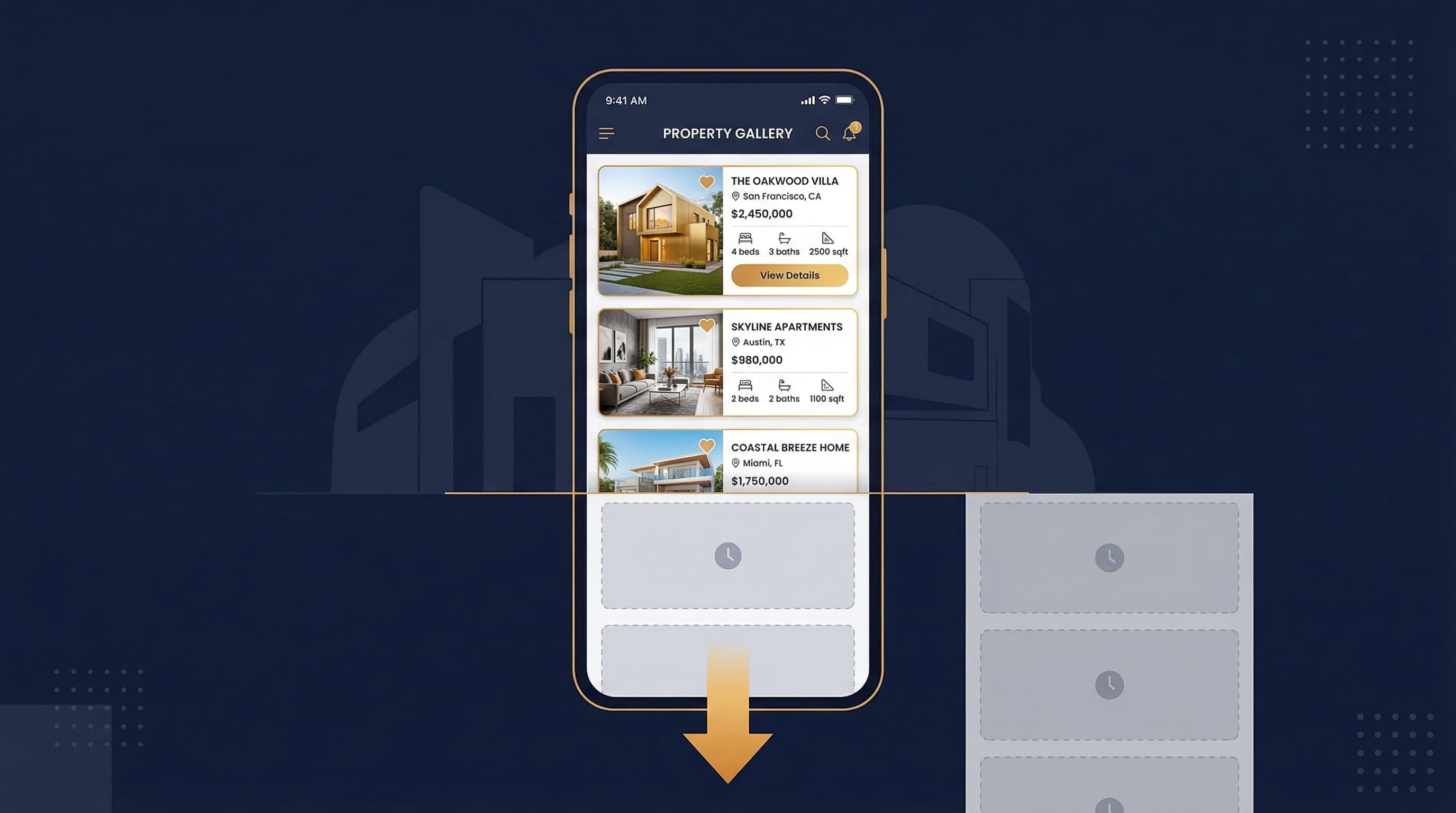
Lazy loading for real estate property gallery
What to do: Lazy loading delays the loading of images below the visible screen area until the visitor scrolls to them. This is the correct solution to the gallery loading problem because it means the browser only downloads the images a visitor actually sees, not the entire gallery at once. In WordPress, lazy loading is enabled by default for images added after version 5.5. For gallery plugins, check the plugin settings specifically: FooGallery, Envira Gallery, and Modula all include lazy loading options in their settings panels. Enable it if it is not already active.
Why it matters: A 20-image property gallery with lazy loading active loads only the first three or four visible images on initial page load. The remaining images load as the visitor scrolls down the page. The perceived load time, which is what determines whether a visitor stays, drops dramatically even though the total image data transferred does not change. The visitor sees a fast page because the visible content loads first.
Pro Insight:
Test lazy loading on the actual gallery page after enabling it. Some gallery plugins implement lazy loading in a way that causes a brief white flash between the placeholder and the loaded image. If this happens on your gallery, switch from native lazy loading to a JavaScript-based lazy loading library which provides a smoother fade-in transition that suits a luxury property presentation better.
Step 3 — Install and Configure a Caching Plugin

Budget hosting versus managed hosting for real estate websites
What to do: Install WP Rocket if the hosting budget allows it at $59 per year, or LiteSpeed Cache if the site is on LiteSpeed server hosting, which SiteGround and many managed hosts use. After installation, enable page caching, browser caching, and GZIP compression from the plugin settings. In the media settings, enable the WebP conversion option if the plugin offers it. This converts future image uploads to WebP format automatically, which is smaller than JPEG at equivalent visual quality.
Why it matters: Without caching, WordPress rebuilds every page from scratch on every visit. The server queries the database, assembles the page, and sends it to the browser. With caching active, the first visitor triggers a build and the result is saved. Every subsequent visitor receives the saved version instantly, without a database query. For a real estate site with detailed property pages and a large database of listings, this difference in server response time is significant.
Pro Insight:
After activating caching, clear the cache and test the site on PageSpeed Insights again. Compare the server response time before and after. A well-configured cache should reduce Time to First Byte from 800 to 1200 milliseconds on a typical shared host to 200 to 400 milliseconds. If the improvement is minimal, the bottleneck is the hosting server rather than the caching configuration.
Step 4 — Connect a CDN
What to do: Create a free Cloudflare account at cloudflare.com. Add the domain to Cloudflare and update the nameservers at the domain registrar to point to Cloudflare's nameservers. This routes all site traffic through Cloudflare's global network, which serves cached versions of static assets including images from the server location nearest to each visitor. The process takes approximately 30 minutes and requires no code changes to the site.
Why it matters: A property site hosted on a server in the UK serves content quickly to visitors in London but significantly slower to visitors in New York, Dubai, or Hong Kong. For a luxury real estate agent whose clients may be international buyers, this geographic performance gap is a direct conversion problem. A CDN eliminates it by serving content from a local server regardless of where the hosting server is physically located.
Pro Insight:
Cloudflare's free tier includes CDN, basic DDoS protection, and SSL. After connecting the domain, set the SSL mode to Full Strict in Cloudflare settings if the hosting server has an SSL certificate installed. Set the caching level to Standard and enable Auto Minify for JavaScript, CSS, and HTML. These three settings add meaningful speed improvement beyond the CDN effect itself.
Step 5 — Fix Render-Blocking Scripts
What to do: PageSpeed Insights flags render-blocking resources when JavaScript or CSS files are loaded before the page content is visible. In WP Rocket, this is addressed in the File Optimization tab: enable Load JS Deferred and Delay JS Execution. In LiteSpeed Cache, the equivalent settings are in the Page Optimization tab. Test the site after enabling these settings to confirm no functionality is broken, specifically the property gallery, contact form, and any interactive map elements.
Why it matters: Render-blocking scripts cause the browser to pause page rendering while it downloads and processes a script file. Visitors see a blank or partially loaded page during this pause. On a real estate site with multiple third-party scripts including analytics, chat widgets, and property search tools, the cumulative rendering delay can add two to three seconds to the perceived load time even after image optimisation is complete.
Pro Insight:
Test on a staging environment before applying JS deferral to the live site. Deferred JavaScript occasionally breaks gallery lightbox functions, contact form validation, or interactive property map features. Identify and exclude any scripts that cause visible breakage from the deferral list before deploying to the live site.
Step 6 — Upgrade Hosting if Server Response Time Is the Bottleneck
What to do: Check the Time to First Byte metric in GTmetrix or PageSpeed Insights. A healthy TTFB is under 600 milliseconds. Over 1000 milliseconds indicates a server-side problem that image compression and caching cannot solve. If the site is on a budget shared hosting account, migrating to a managed WordPress host eliminates the server response bottleneck. SiteGround Business, WP Engine Starter, or Kinsta Starter all provide significantly faster server response times than budget shared hosting.
Why it matters: Caching reduces the server's workload but it does not compensate for an underpowered server. A real estate site with a large property database on an oversold shared hosting account will have a high TTFB regardless of caching configuration because the server does not have the resources to respond quickly. Hosting is the foundation. All other speed optimisations have a ceiling determined by the quality of the server they run on.
Pro Insight:
Managed hosts designed for WordPress include server-level caching that operates faster than plugin-based caching because it runs closer to the server hardware. On SiteGround with SG Optimizer and LiteSpeed Cache enabled, the TTFB for a real estate site with a large image library typically drops to 150 to 300 milliseconds. That server-level speed improvement cannot be replicated with plugin configuration alone on budget hosting.
Step 7 — Run a Final Speed Test and Set a Baseline
What to do: After applying each fix, run the site through both Google PageSpeed Insights and GTmetrix and record the scores. Test the homepage, a property listing page, and a gallery page separately. The target is a PageSpeed mobile score above 70 and a load time under three seconds on mobile. Record these numbers as a baseline to compare against in future audits.
Why it matters: A speed optimisation without a baseline comparison is not a measurable improvement. Recording the before and after scores for each fix identifies which changes had the most impact, which is useful for prioritising future optimisation work. It also provides a concrete record to reference if a future plugin update or theme change degrades performance.
Pro Insight:
Test the site in an incognito browser window after optimisation. Browser cache from previous visits will give a misleadingly fast result in a regular window. Incognito mode replicates the experience of a first-time visitor, which is the user experience that determines whether people stay or leave.
Common Speed Mistakes on Real Estate Sites
Uploading Images Directly From the Camera or Photographer
Professional property photographers deliver images at full sensor resolution, typically 24 to 45 megapixels, because that is the appropriate output for print marketing. Browser displays render at 72 to 96 pixels per inch. A full-resolution property image displayed on a browser is sending approximately 50 to 100 times more data than the screen can use. Every property image should be resized and compressed before upload. Images destined for the web should not exceed 1800 pixels wide and 200 kilobytes in file size.
Installing a Heavy Page Builder for the Gallery
Page builders including Elementor, Divi, and WPBakery load significant JavaScript and CSS on every page regardless of whether the page uses the builder's features. A real estate site that uses Elementor only for the property gallery is loading Elementor's full asset library on every page including fast-loading service pages that have nothing to do with properties. This adds unnecessary weight to every page on the site. Lightweight gallery plugins load only the code needed for the gallery, on the pages that actually display it.
Enabling Too Many Plugins That Each Add Front-End Scripts
Each plugin that adds front-end functionality including analytics, chat, cookie consent, social sharing, and property search adds JavaScript to every page. Each additional script increases the total page weight and the number of server requests required to load the page. Audit the plugin list for any plugin whose front-end output is not essential. Disable the front-end component of analytics and tracking plugins on pages where tracking is not needed, and remove any plugin whose functionality is duplicated by another.
Not Testing on Actual Mobile Devices
PageSpeed Insights simulates mobile performance using a throttled connection. GTmetrix tests from a desktop server. Neither replicates the experience of an actual mobile user on a real device and network. Test the site on an actual phone over a mobile data connection at least once per speed optimisation session. The perceived load time on a real device often differs significantly from tool estimates, and the visual rendering issues that affect conversion, layout shifts, image overflow, and tap target size, are only visible on an actual device.
The Exact Speed Stack Used on Real Estate Client Sites

Real estate website page speed optimised
This is the standard speed configuration applied to WordPress real estate sites:
- Hosting: SiteGround Business with LiteSpeed server or WP Engine Starter. Server response time under 400ms baseline.
- Image compression: ShortPixel Image Optimizer, Lossy mode for exteriors, Glossy for interiors. All existing library images bulk compressed on setup.
- Upload standard: Maximum 1800px wide, under 200KB per image before upload. WebP format where supported by the theme.
- Gallery plugin: FooGallery or Modula with lazy loading enabled. No page builder used solely for gallery display.
- Caching: LiteSpeed Cache with page cache, browser cache, and GZIP active. WebP conversion enabled.
- CDN: Cloudflare free tier connected at nameserver level. Auto Minify enabled for JS, CSS, and HTML.
- Script management: Non-critical JS deferred via LiteSpeed Cache file optimisation. Third-party scripts audited and non-essential ones removed.
- Baseline: PageSpeed mobile score above 75, load time under 2.5 seconds on a standard 4G connection.
This stack consistently achieves under three-second mobile load times on real estate sites with 20 to 50 property listings in the gallery. The configuration takes approximately two to three hours to set up correctly on an existing site and is included as standard on new builds.
Don't Have Time to Deal With This?
Speed optimisation on a real estate site requires getting several technical layers right simultaneously. Image compression settings, gallery plugin configuration, caching rules, CDN setup, and script deferral all interact. Getting one wrong can break the gallery, slow the site further, or produce a perfect PageSpeed score on a page that looks broken on a real phone.
The $449 WordPress Website Package includes the full speed stack configured correctly before the site goes live. Fast server, compressed images, caching active, CDN connected. The gallery looks right and the site loads in under three seconds on mobile.
One fixed price. No agency overhead. No retainer.
View the $449 WordPress Website Package
About the Author
Sheikh Hassaan — Website Developer for Small Businesses
I help service businesses launch fast, secure, conversion-focused WordPress websites without the agency price tag. I've built sites for coaches, consultants, local service providers, and founders who need something professional that actually works, not a DIY project that becomes a second job.
Related Articles
- Your Real Estate Website Is Not Getting Leads — Here's Exactly What to Fix (2026)
- How to Set Up WordPress for a Luxury Real Estate Website
- 7 Signs Your WordPress Website Has Been Hacked
Frequently Asked Questions
Why is my real estate website so slow?
The most common cause is uncompressed property images. Professional property photos are often 4 to 8 megabytes each. A gallery page with 15 uncompressed images loads 60 to 120 megabytes of data. Compressing images with a tool like ShortPixel typically reduces load time by 60 to 80 percent without any visible quality change.
How do I speed up my WordPress real estate site without removing images?
Compress existing images using ShortPixel without reuploading, enable lazy loading in the gallery plugin settings so only visible images load initially, install a caching plugin, and connect Cloudflare as a free CDN. None of these steps require removing or replacing property images.
Does page speed affect real estate leads?
Yes, directly. A one-second increase in mobile load time reduces conversions by approximately 20 percent. Most real estate visitors are on mobile. A site loading in six seconds on mobile loses the majority of potential enquiries before the first property image is visible.
What is a good PageSpeed score for a real estate website?
A mobile PageSpeed score above 70 and a load time under three seconds on a standard 4G connection is a realistic and functional target for a real estate site with a full property gallery. Scores above 90 are possible but typically require more aggressive optimisation that can conflict with gallery functionality.
Will compressing images damage my property photography quality?
No, when done correctly. Lossy compression at 80 to 85 percent quality removes image data that is invisible at normal browser viewing sizes. The visual difference between a 4MB uncompressed property photo and a 180KB compressed version is imperceptible on a browser screen. The difference in load time is significant.